Published on: February 3, 2026

How to Create an Interactive PowerPoint in 3 Steps

Jelle in ’t Hout, PowerPoint specialist

By Jelle in 't Hout

Introduction

A PowerPoint presentation becomes truly interactive when you add features that let your audience choose, navigate, and engage. In this step-by-step guide, you will learn how to make your PowerPoint interactive using hyperlinks, action buttons, Zoom, and triggers.

1. Adding Hyperlinks in PowerPoint

Hyperlinks allow you to jump to a specific slide, open a document, or link to an external website from your presentation. Here is how to do it:

  • Select the text, image, or shape you want to link.

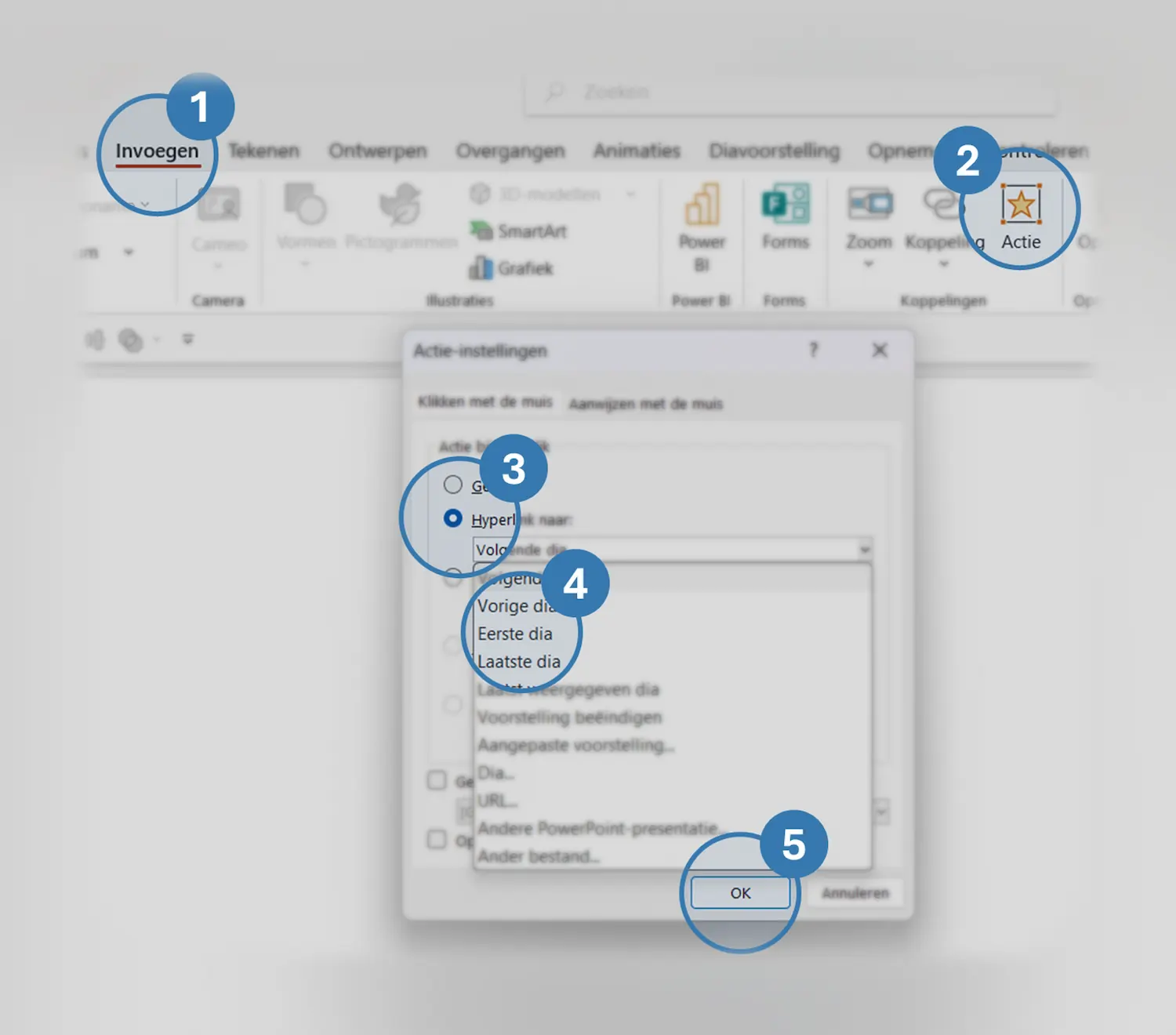
  • Go to the Insert tab and click on Action.

  • Choose Hyperlink to, then select the destination: next slide, last slide, or a URL.

  • Click OK to place the hyperlink.

Hyperlinks are a simple way to make your interactive presentation more dynamic and engaging.

2. Using Action Buttons

Action buttons are essential for navigation in an interactive PowerPoint. They can be used for Next, Previous, Home, or choice buttons such as Product A or Product B.

Steps to add action buttons:

  • Insert a Home or arrow icon via the Insert tab, then click Icons.

  • Select the icon you want to use.

  • Go to the Insert tab and click Action.

  • Choose Hyperlink to, and select where the button should go: next slide, last slide, or a specific slide.

  • Click OK to apply the action.

Action buttons allow your audience to navigate freely, making the presentation feel more like an interactive website.

3. Using Zoom in PowerPoint

The Zoom feature, available in PowerPoint 2019 and Microsoft 365, makes your presentation visually appealing and interactive. It functions like a clickable table of contents.

How to add Zoom:

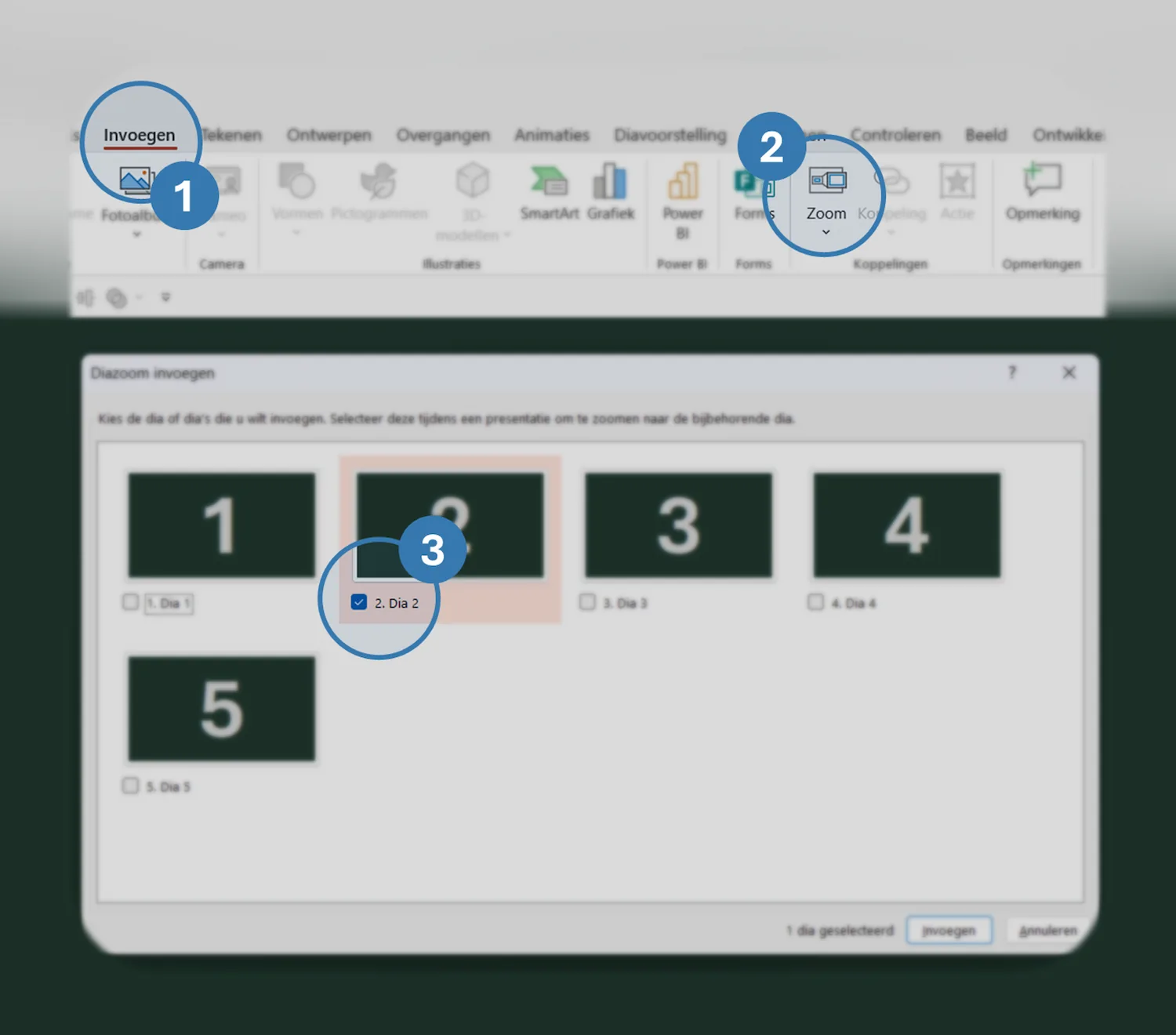
  • Go to the Insert tab and click Zoom.

  • Choose Section Zoom to jump to an entire section or Slide Zoom to show a single slide.

  • Use the Back to Zoom button in the top left to return to the original slide after exploring.

Zoom allows your audience to explore content in a non-linear way and keeps them actively engaged.

Conclusion

By combining hyperlinks, action buttons, Zoom, and triggers, you can turn a linear slide deck into an interactive PowerPoint presentation that increases engagement and audience participation. These tools allow your audience to make choices and interact with your content, creating a dynamic and memorable presentation.

At Aesthetiq, we design interactive PowerPoint presentations that are visually appealing and fully functional. If you want a presentation that truly makes an impact, contact us today to explore the possibilities. 🚀

Share this post